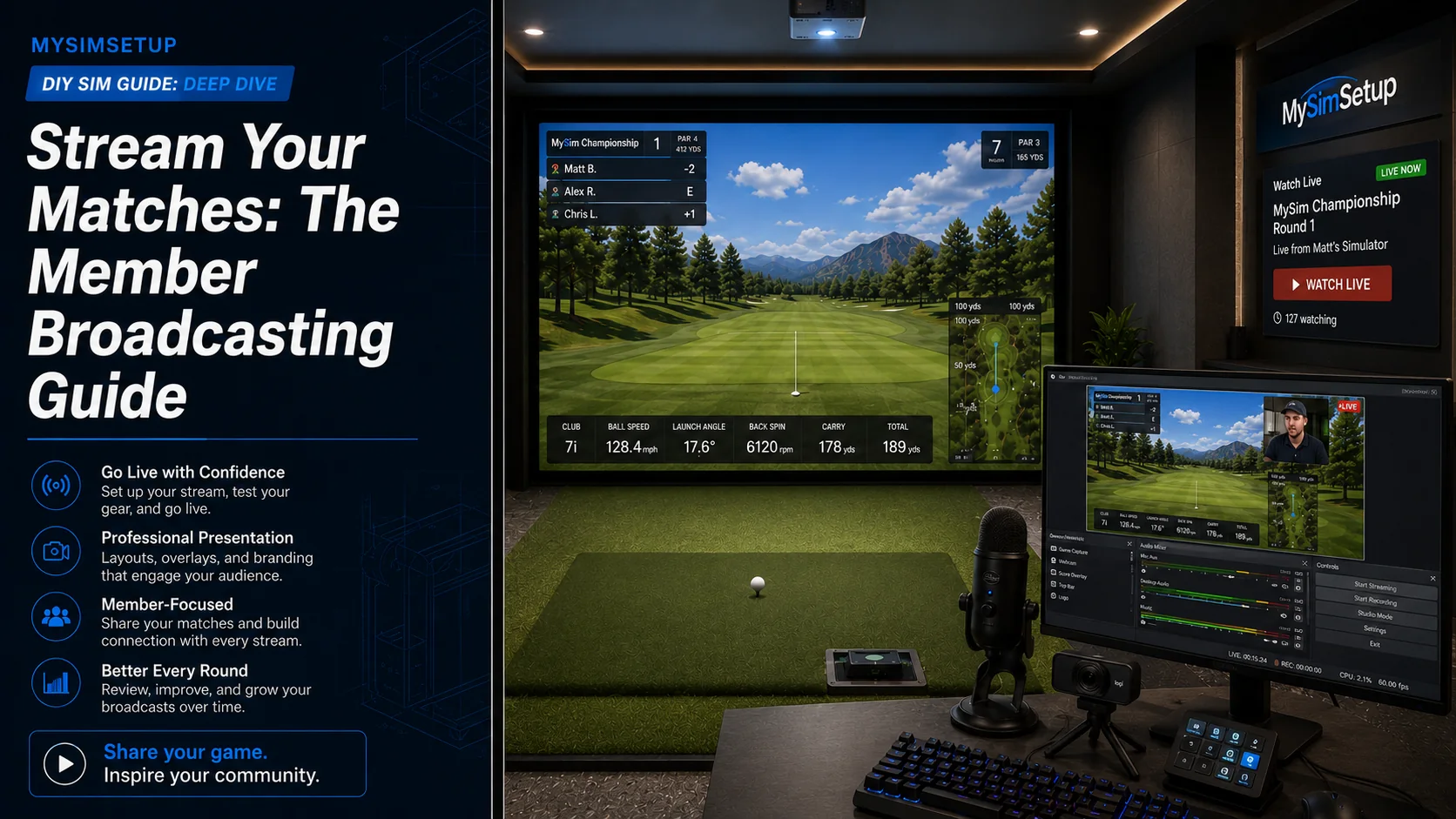
Stream Your Matches: The Member Broadcasting Guide
Going live turns your tournament round into an event: your match leads the Live TV rail, spectators follow the scorecard in the watch party, and your finish gets a replay link the whole clubhouse can tap. Here is the full setup, from OBS to on air, in about thirty minutes.
Why stream your match
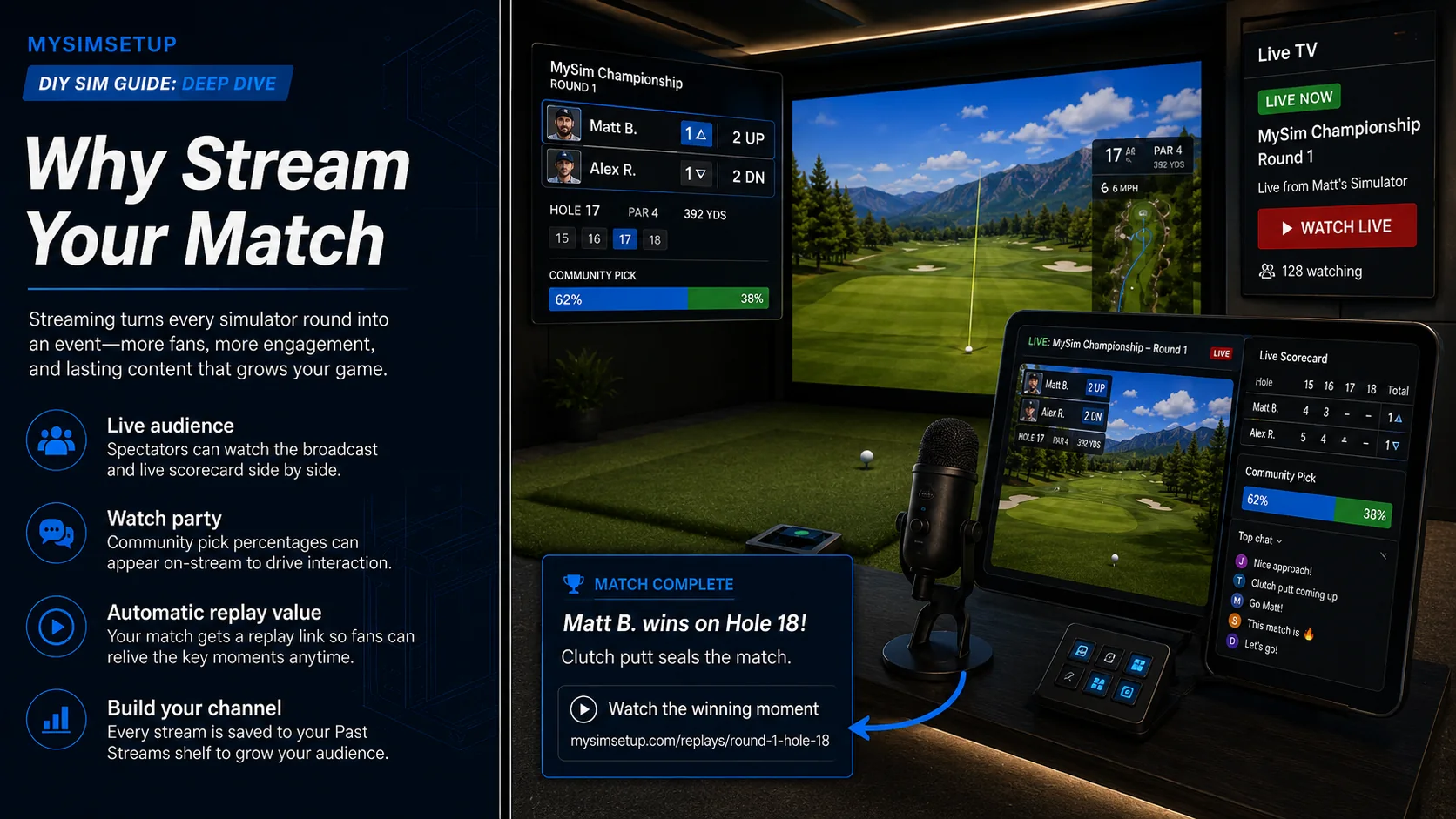
A streamed match is worth more than the same match played quietly, and not just for bragging rights. Spectators can watch the broadcast and the live scorecard side by side in the watch party. The community pick percentages show right on the stream if you add the overlay. When the match ends, the result post in the clubhouse feed automatically links to the exact minute of your clinching hole in the video. And your recording lands in the Past Streams shelf on Live TV, so the round keeps working for you after it is over.
What you need
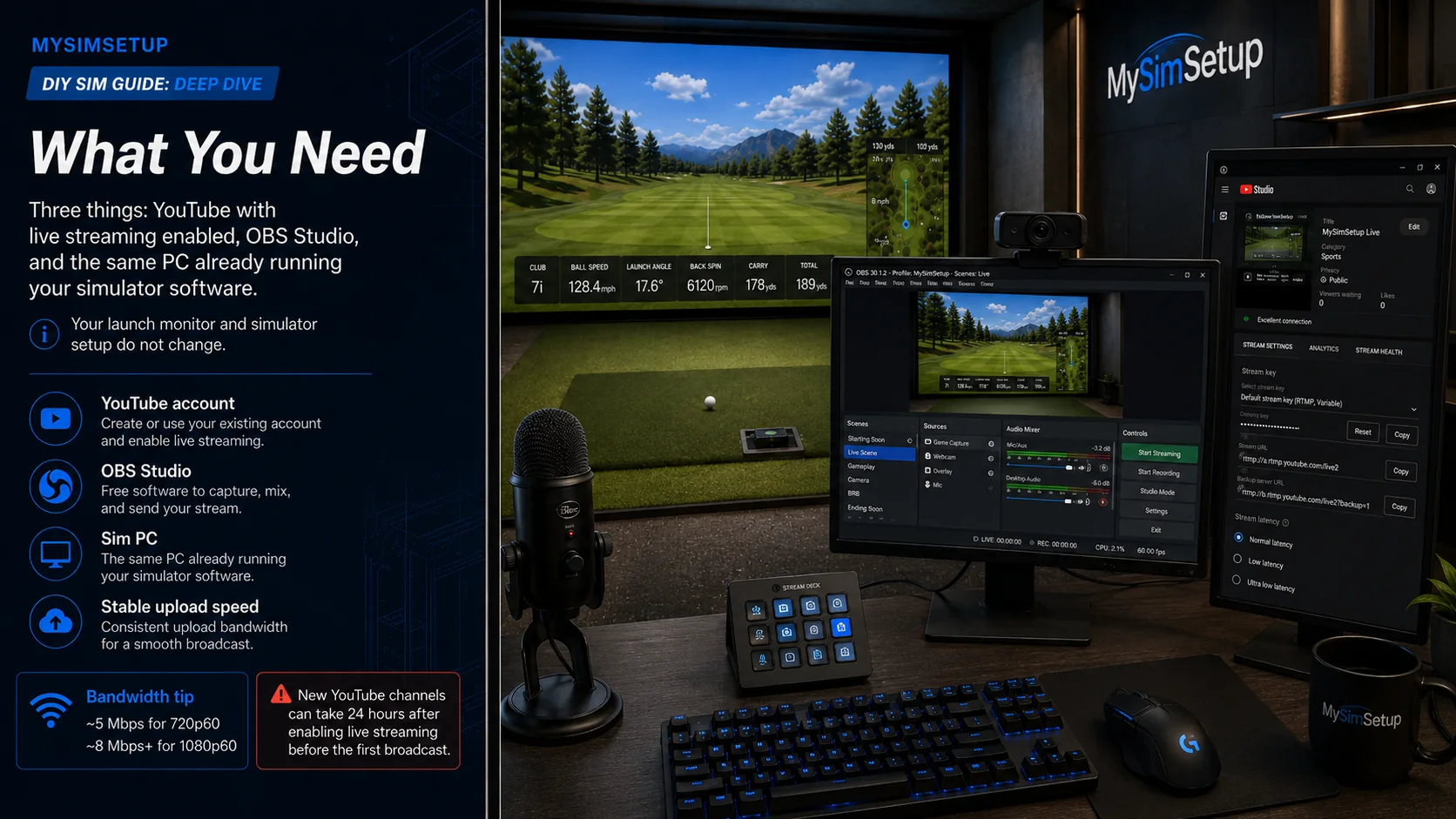
Three things: a YouTube account with live streaming enabled, OBS Studio (free, obsproject.com), and the PC already running your simulator software. Your launch monitor and sim do not change at all. If your upload speed can handle about 5 Mbps you can stream at 720p60, which looks great for golf; 1080p60 wants roughly 8 Mbps or more.
OBS in fifteen minutes
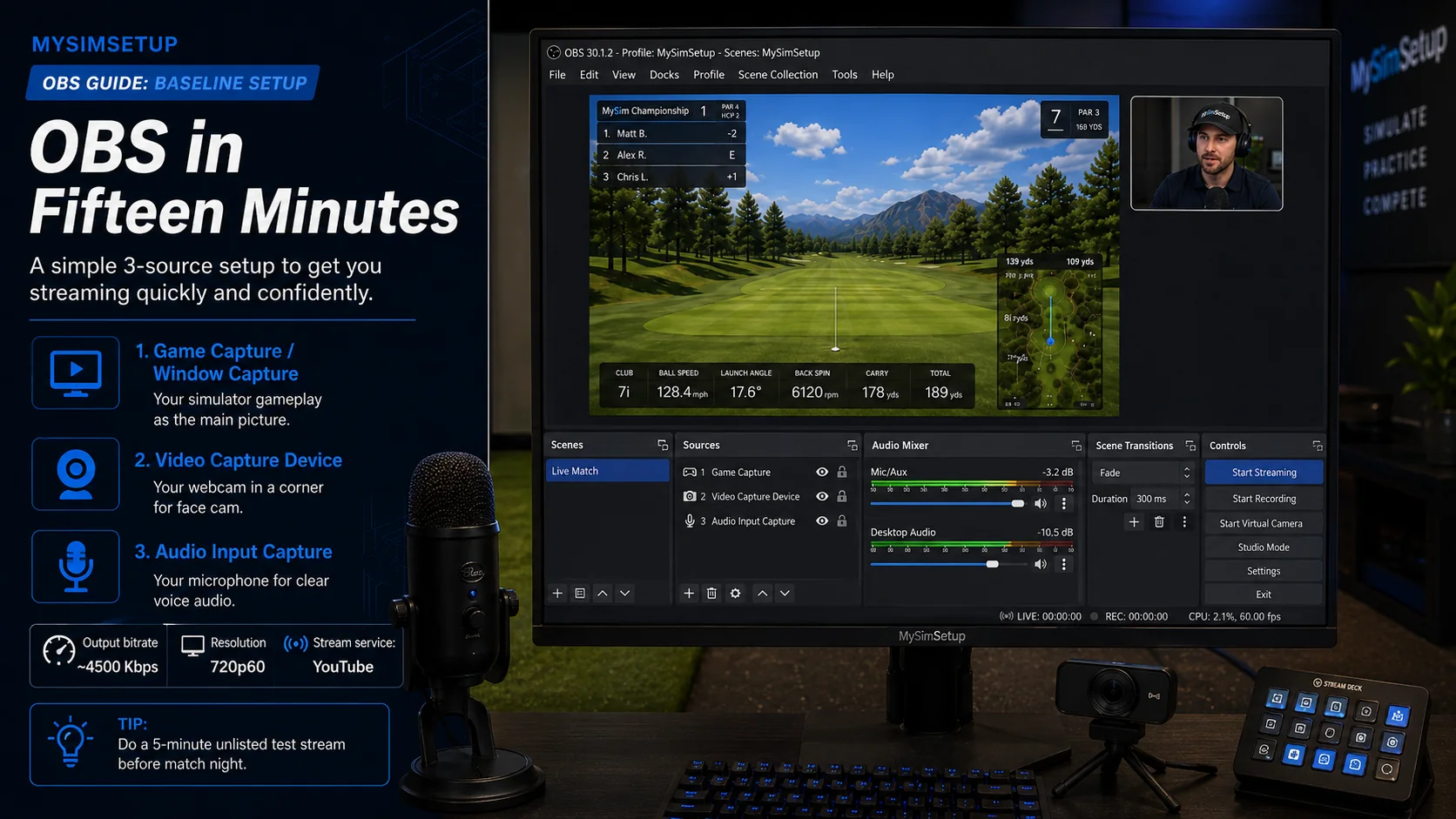
Open OBS and create one scene with three sources. First, a Game Capture (or Window Capture) of your simulator software, which becomes the main picture. Second, a Video Capture Device for your webcam if you want a face cam, sized small in a corner. Third, your microphone under Audio Input Capture. In Settings, Output, set the video bitrate to about 4500 Kbps for 720p60. In Settings, Stream, choose YouTube and connect your account. That is genuinely the whole baseline.
Add the live scorecard to your stream
This is the piece that makes a member broadcast feel like a produced show. Every tournament match has ready-made browser overlays: a compact OBS score tile showing both sides, the running match state, and the community pick split, plus a full read-only scorecard page. Open your match card on the bracket page and look for the overlay links in the live scoring section; each has a copy button.
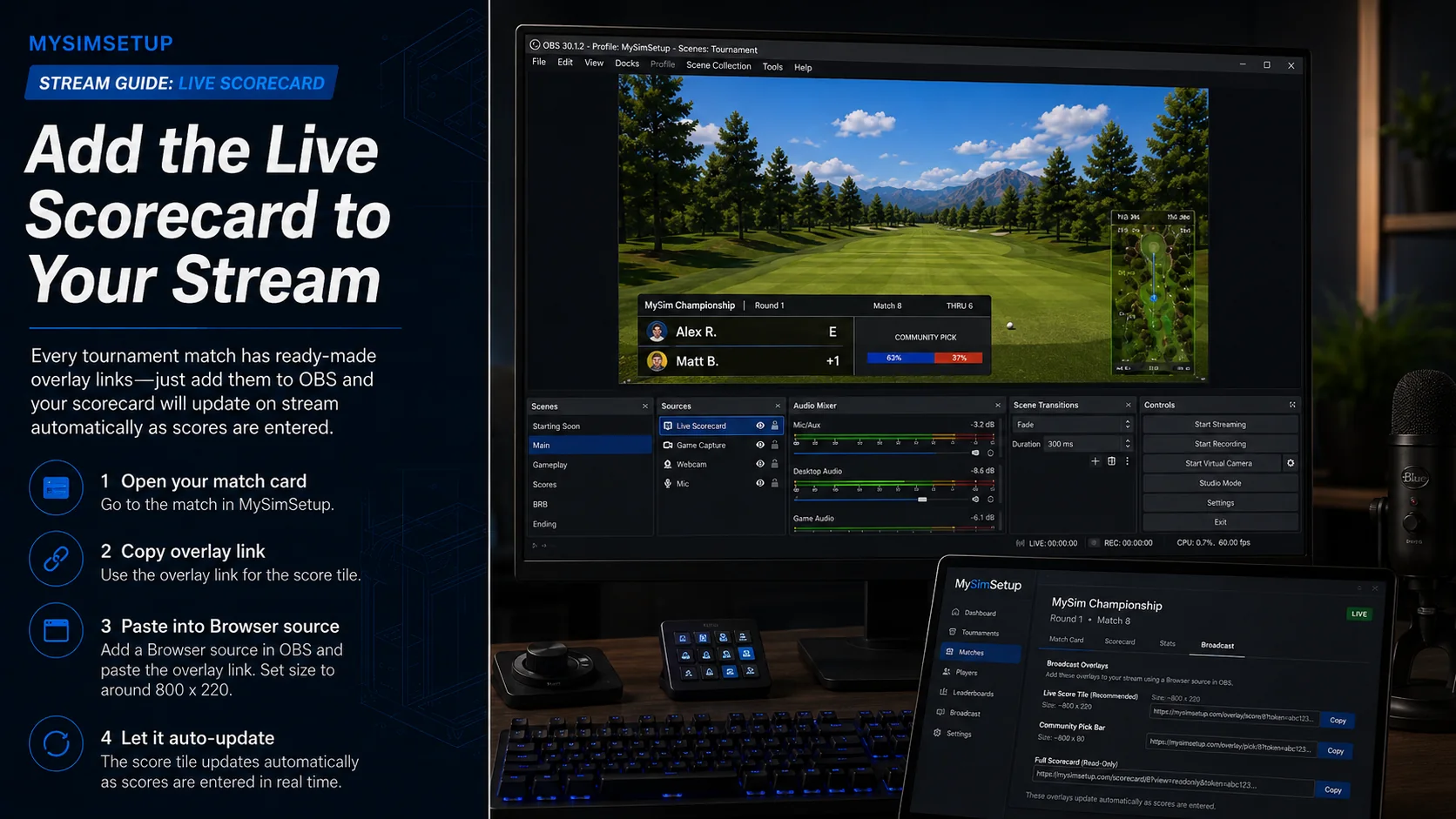
In OBS, add a Browser source, paste the overlay link, and size it around 800 by 220 for the score tile. It updates itself as scores are entered, so once it is in the scene you never touch it again. Spectators watching on YouTube see the same numbers the clubhouse sees.
Schedule the broadcast and link it to your match
In YouTube Studio, create the live stream ahead of time and copy the watch link. Then open your match on the bracket and paste it into Save Stream Link. That single paste wires everything: the match card shows a Watch button, the Live TV rail and the tournaments page list your match with the stream attached, and picks stay open until you actually go live because the site can tell a scheduled broadcast from a running one.
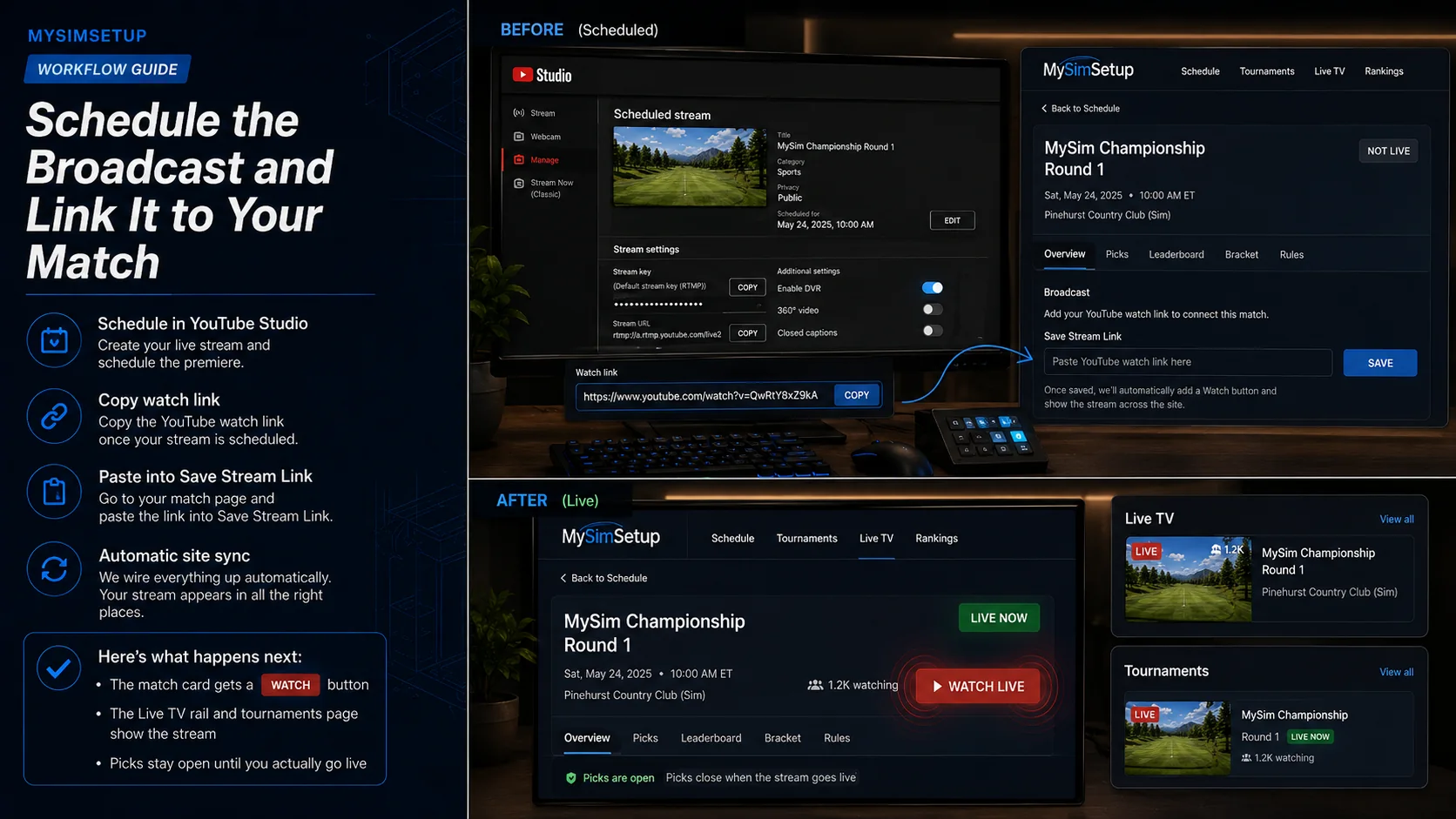
When you click Go Live in OBS, the site catches the change within a few minutes. Your card flips to a green Live Now chip with the viewer count, the Watch button turns red and pulses, your channel joins the Live Now wall on the TV page, and members who follow you get notified. Nobody has to announce anything.
After the round
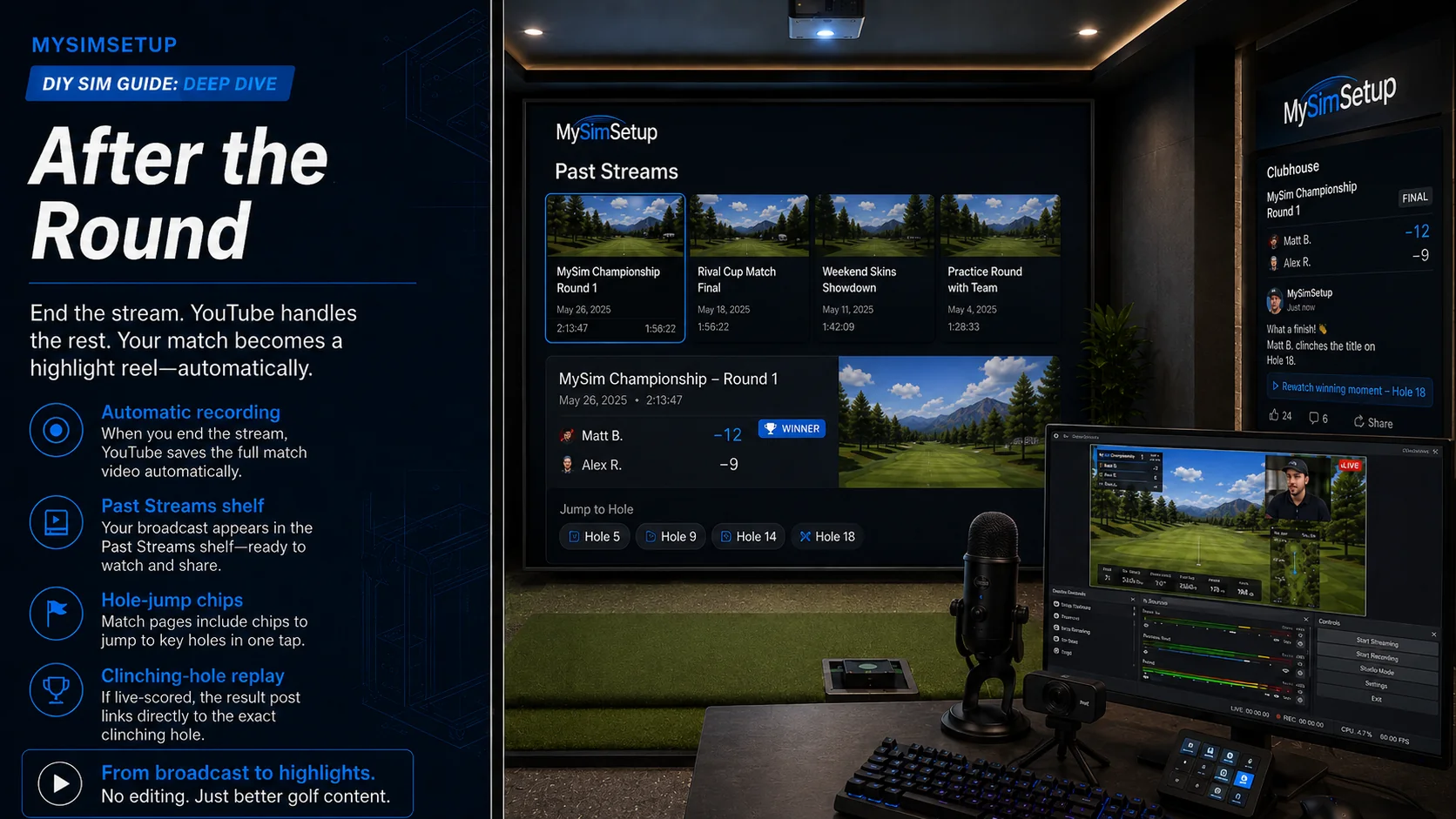
End the stream in OBS and YouTube keeps the recording automatically. The video moves to the Past Streams shelf on Live TV, the match card grows hole-jump chips so anyone can skip straight to a specific hole in your video, and if the match was live-scored, the automatic result post in the clubhouse feed includes a link that opens your video right at the clinching hole. Your round becomes a highlight reel without any editing.
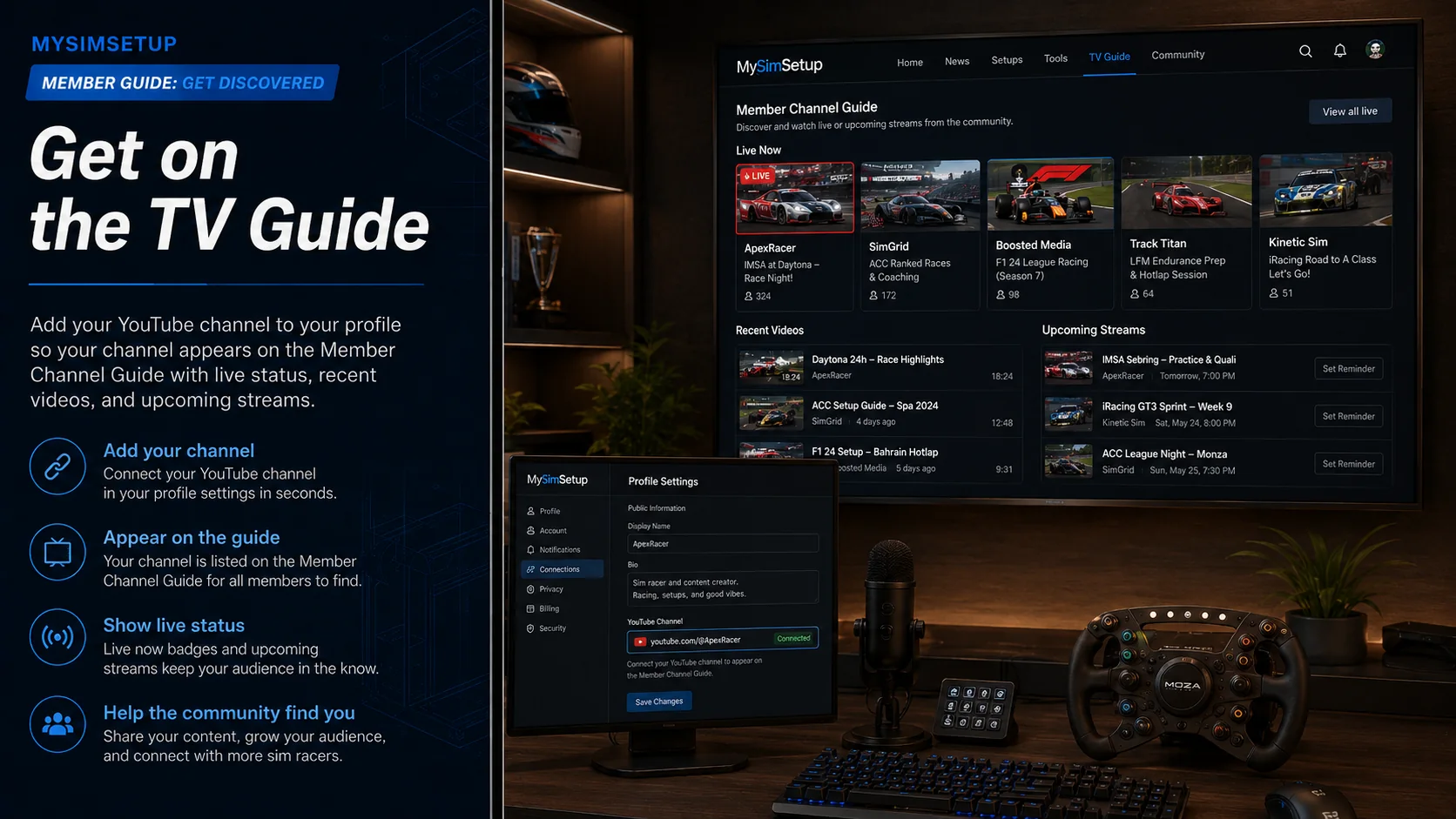
Get on the TV guide
One last step if you have not done it: add your YouTube channel to your profile. That is what puts your channel on the Member Channel Guide with your recent videos, live status, and upcoming streams. It takes thirty seconds and it is how the community finds your broadcasts between matches.