How to Calibrate and Align Your Golf Simulator
Calibration is what makes the ball on screen match the ball in your room. Skip it and every shot quietly lies to you.
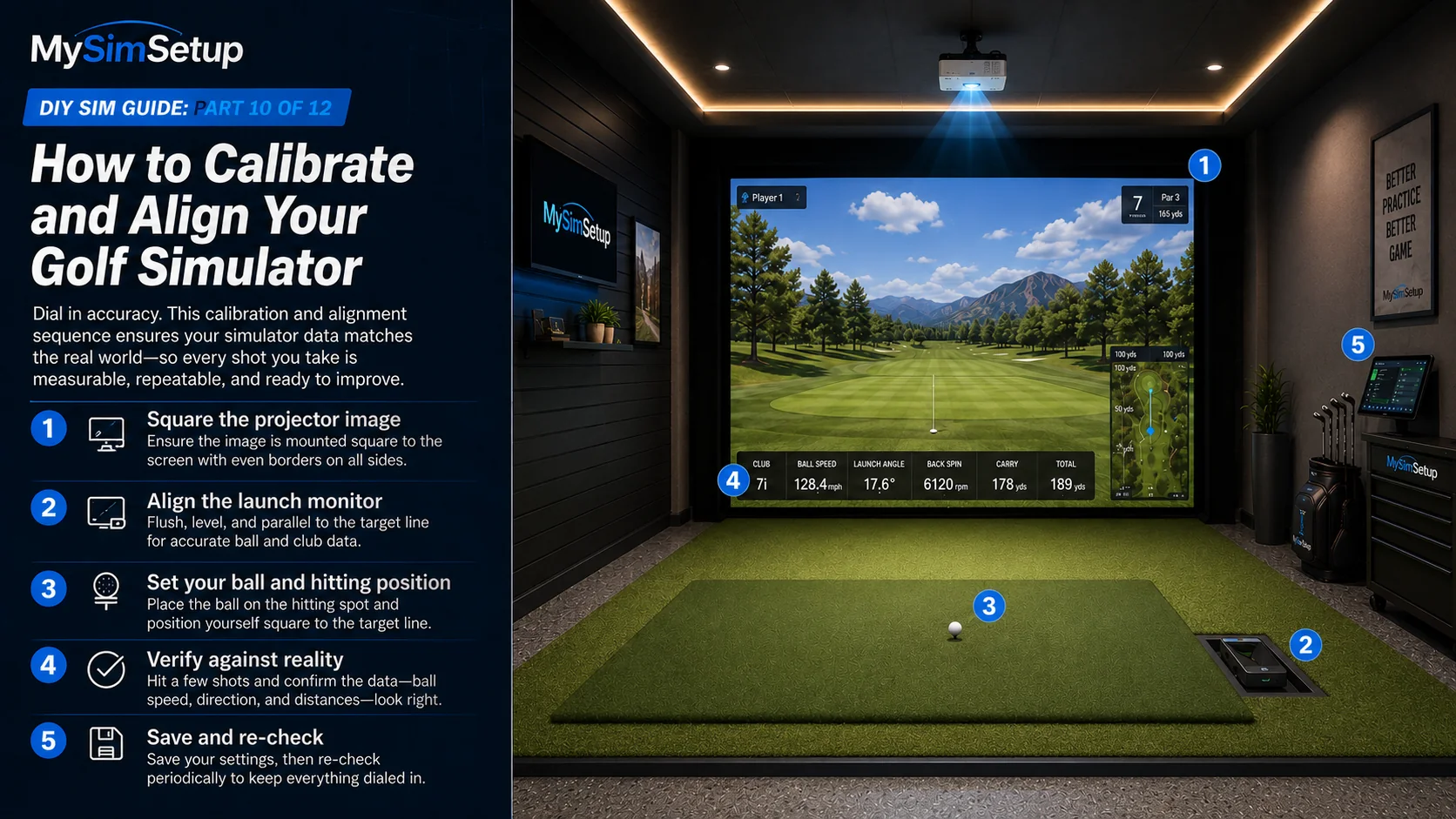
A simulator can be perfectly built and still be wrong. Calibration is the step that ties the physical room to the digital one: squaring the projected image, aligning the launch monitor to your target line, and verifying that the numbers on screen match shots you know in real life. It is not glamorous, but it is the difference between a sim you trust and one that flatters or frustrates you for no reason. This chapter walks through squaring the image, aligning the launch monitor, setting your ball position, and verifying against reality.
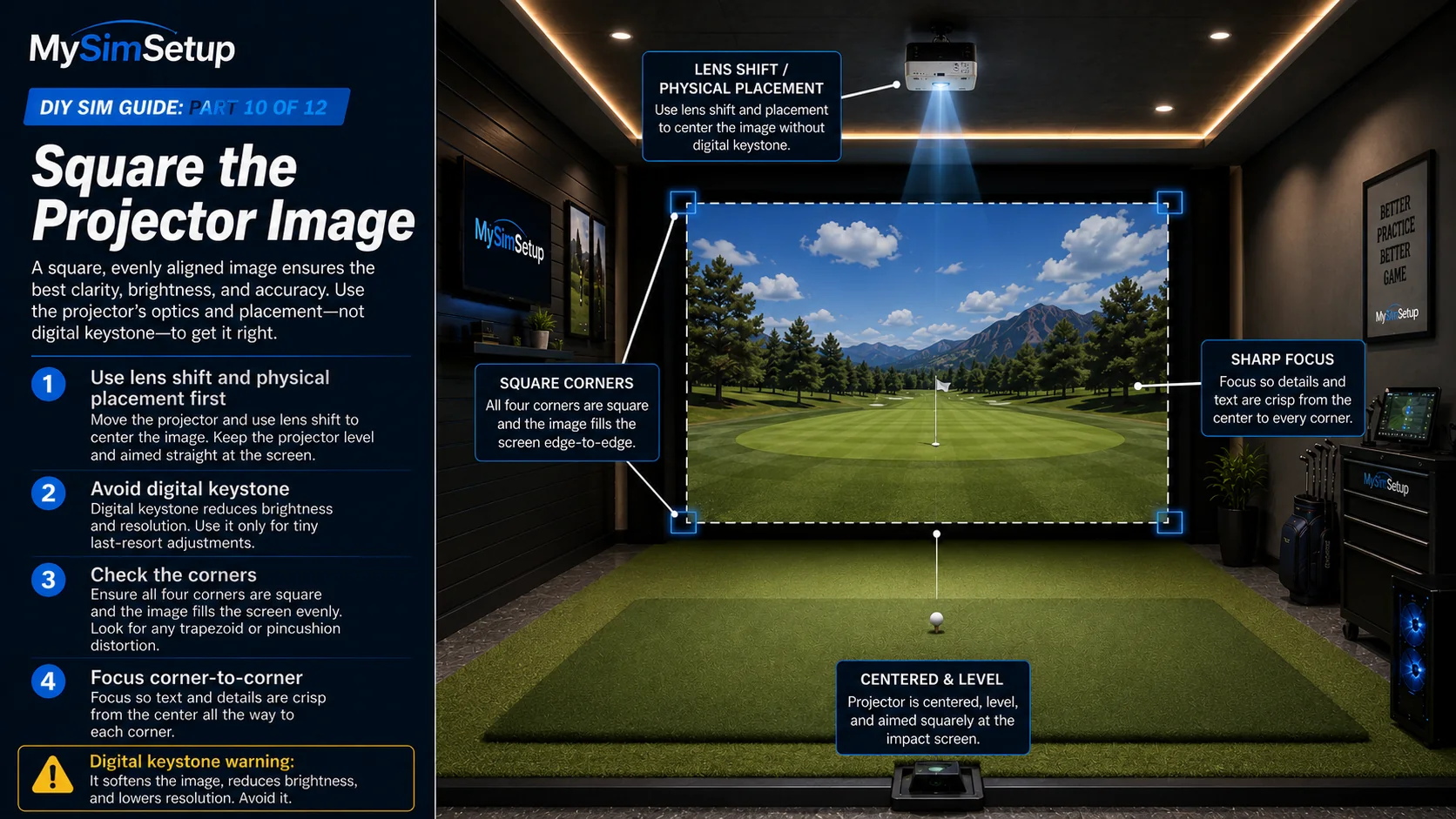
Square the projector image
Use lens shift and physical placement, not digital keystone, to land a square, edge-to-edge image on your screen. Check the corners: a trapezoid or pincushion shape means the projector is off-axis, and the fix is to move or shift it, not to warp the pixels. Then focus for sharpness corner to corner. A square, sharp image is both better looking and a prerequisite for accurate on-screen ball flight.
Align the launch monitor
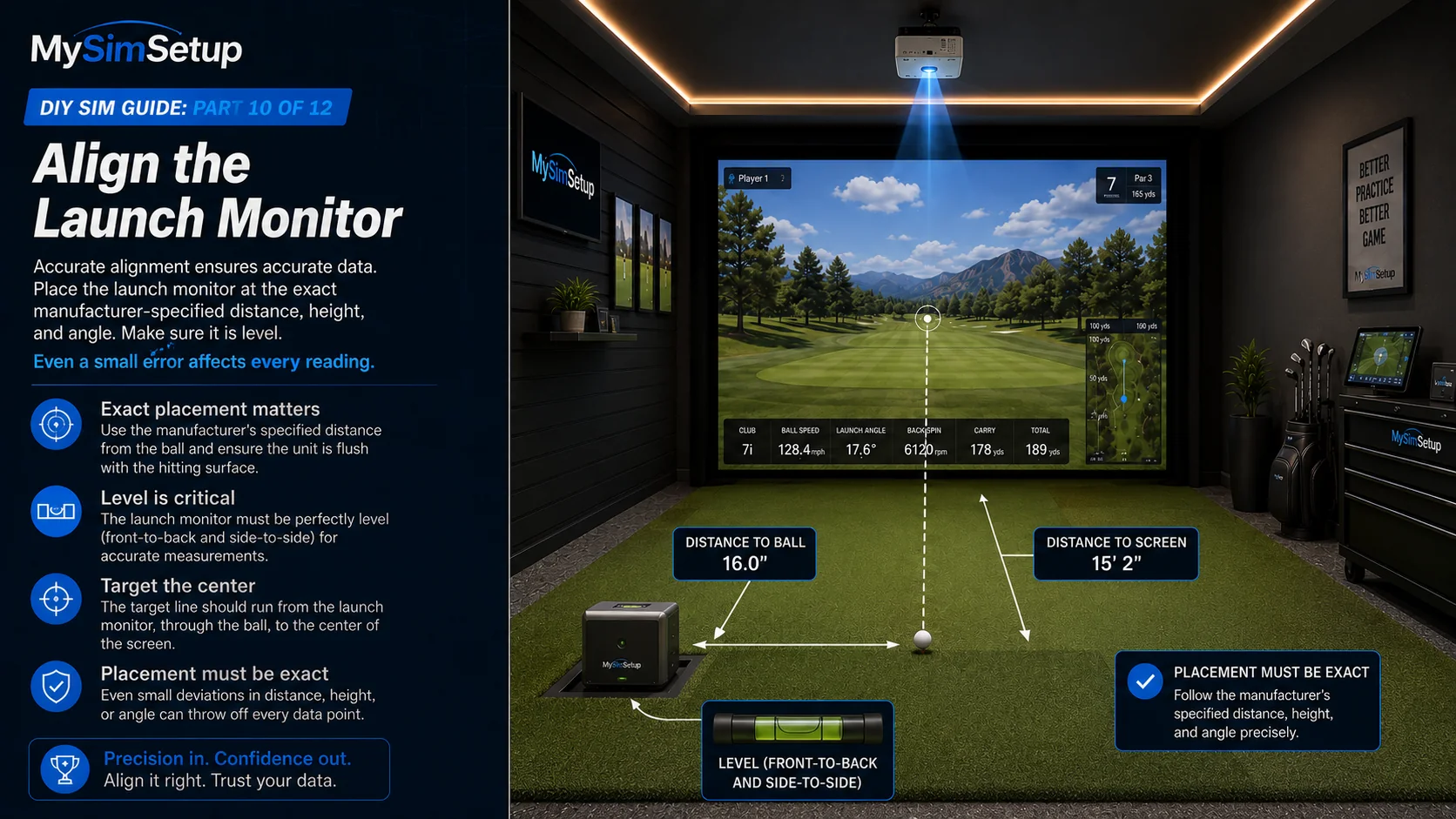
Position and level
Place the unit at the exact distance, height, and angle the manufacturer specifies, and make sure it is level. Launch monitors are precision instruments; being an inch off or slightly tilted from the specified position degrades every reading it takes. Get the placement exact and level before anything else.
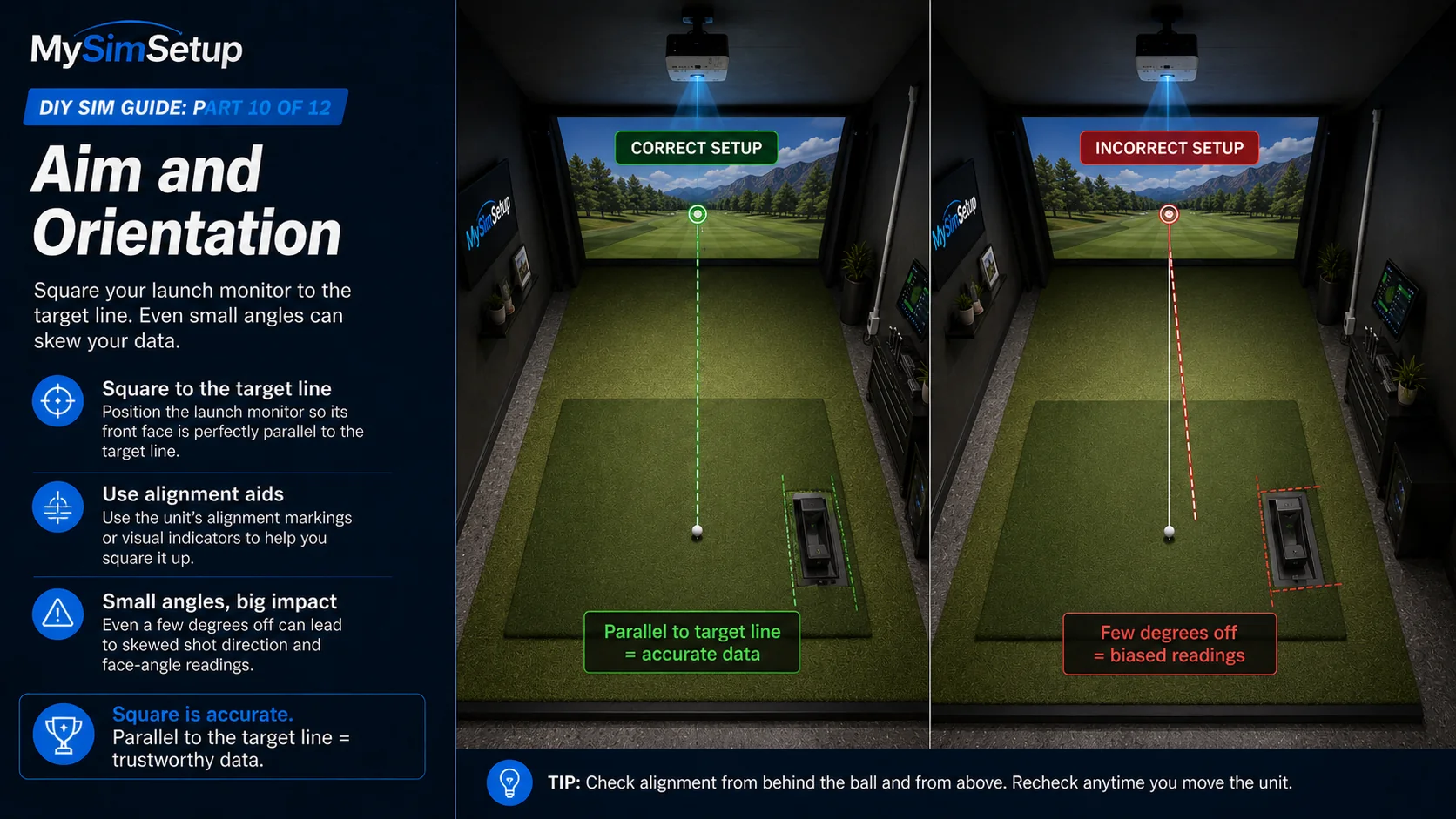
Aim and orientation
Square the unit to your target line. A launch monitor that is aimed a few degrees off will report skewed path and face numbers, quietly biasing every shot. Use the reference marks or alignment aids the unit provides to set it truly parallel to where you are aiming.
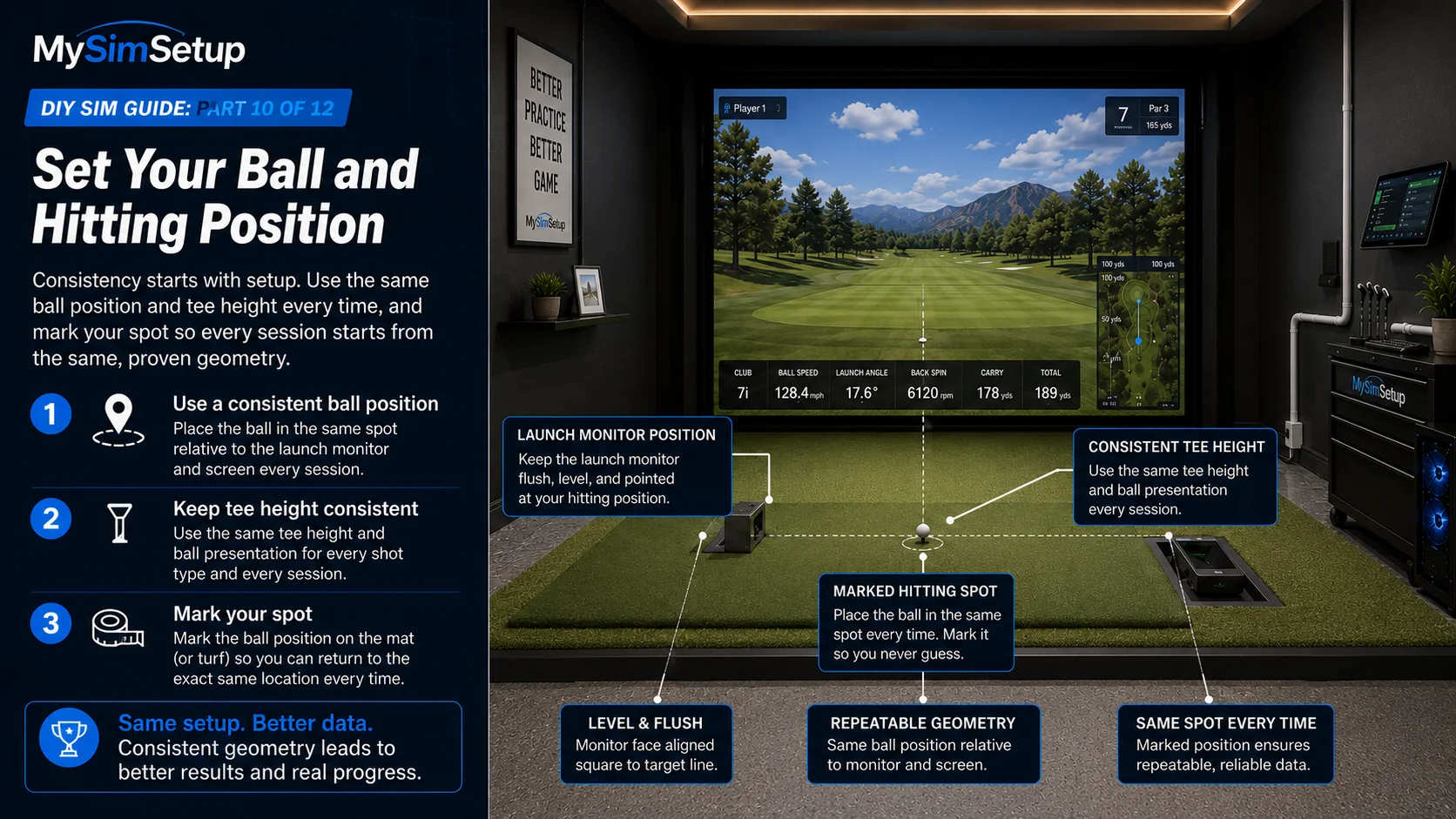
Set your ball and hitting position
Fix a consistent ball position relative to both the launch monitor and the screen, and a consistent tee height, so the unit always sees the strike where it expects to. Marking or knowing your ball spot means every session starts from the same known-good geometry rather than a slightly different setup each time.
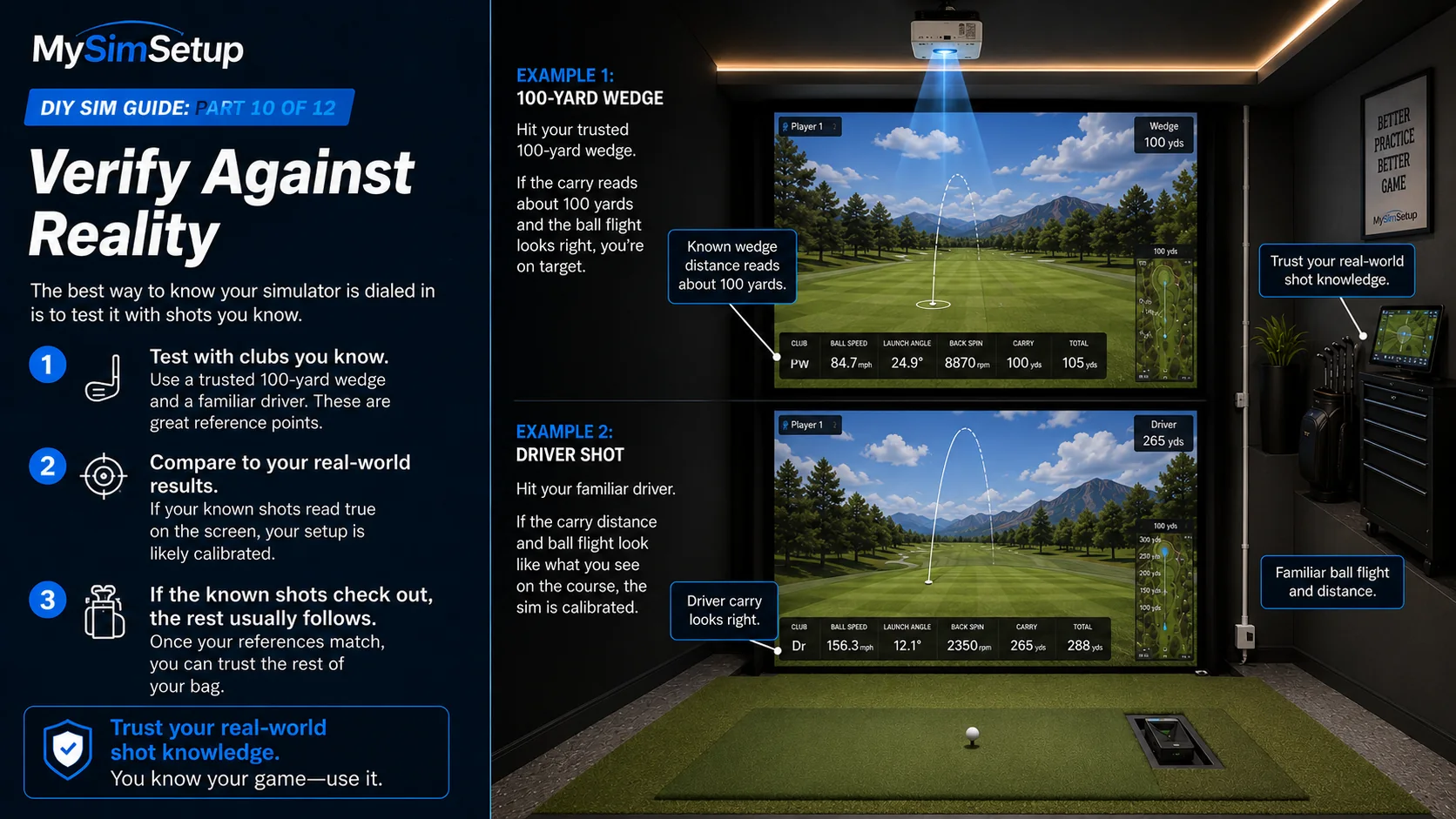
Verify against reality
The real test is whether the sim agrees with shots you already know. Hit clubs whose real distances you trust, like a wedge you know carries a certain yardage or a driver whose flight you can picture, and confirm the on-screen result matches your experience. If your known shots read true, tune until they do; once the ends of your bag are honest, the middle takes care of itself.
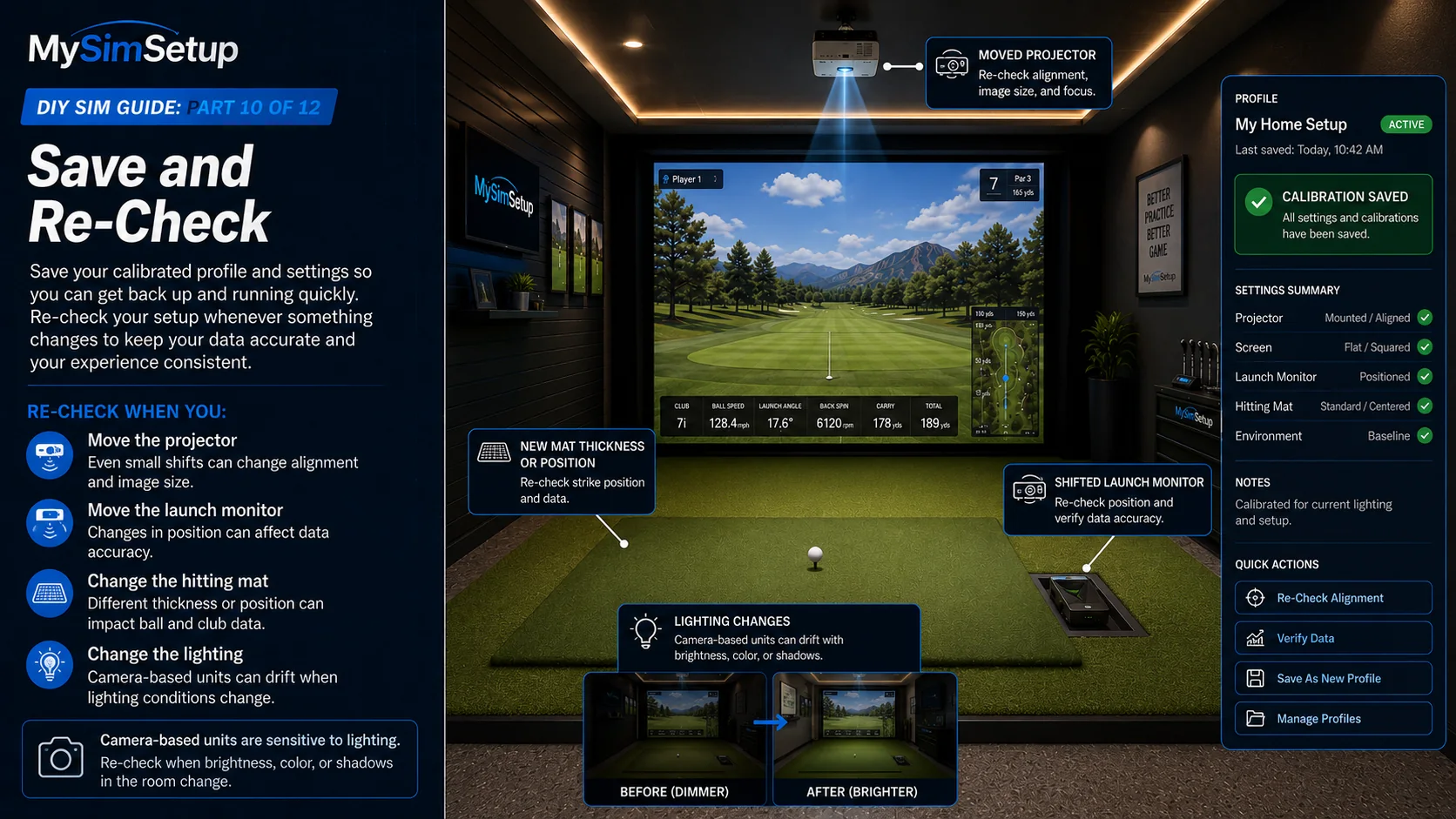
Save and re-check
Save your calibrated profile and settings, and re-verify any time you move a component. Nudging the launch monitor, remounting the projector, or changing the mat all warrant a quick re-check. Camera-based units in particular can drift if your lighting changes, so if shots start reading oddly, revisit position and light before you doubt the hardware.