How to Pick the PC and Software for Your Golf Simulator
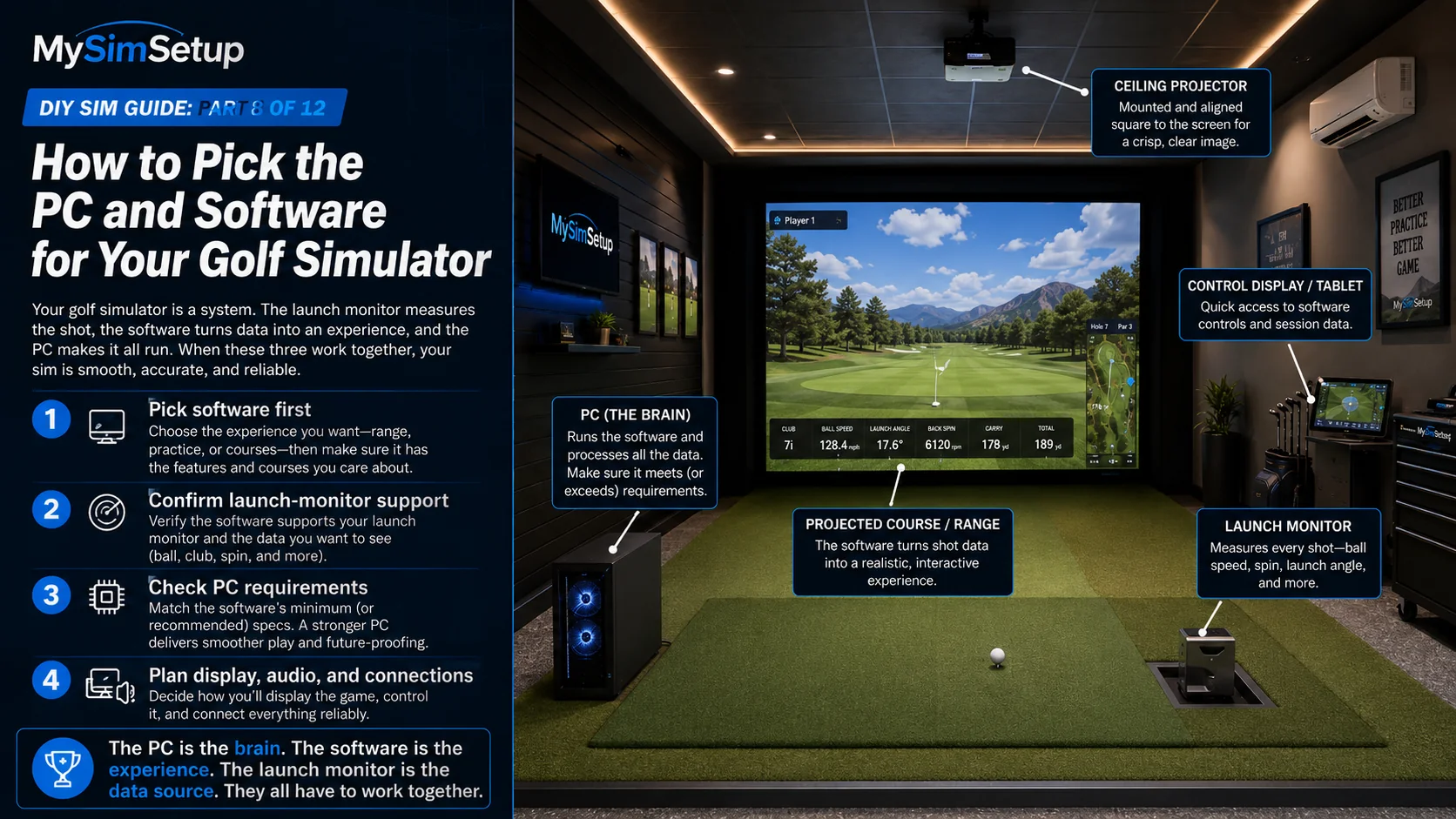
The launch monitor measures your shot, and the software and computer turn it into a course you play. Here is how to match all three so they actually work together.
A launch monitor without software is a very expensive stopwatch. The software takes your shot data and renders a course, a range, or a practice game, the computer runs that software, and not every launch monitor works with every platform. This is the part of a build where compatibility bites people, so the order you decide matters. This chapter shows you why software comes first, what PC each type needs, whether you can reuse a machine you own, and how to make the launch monitor, software, and computer agree.
The software decides everything else
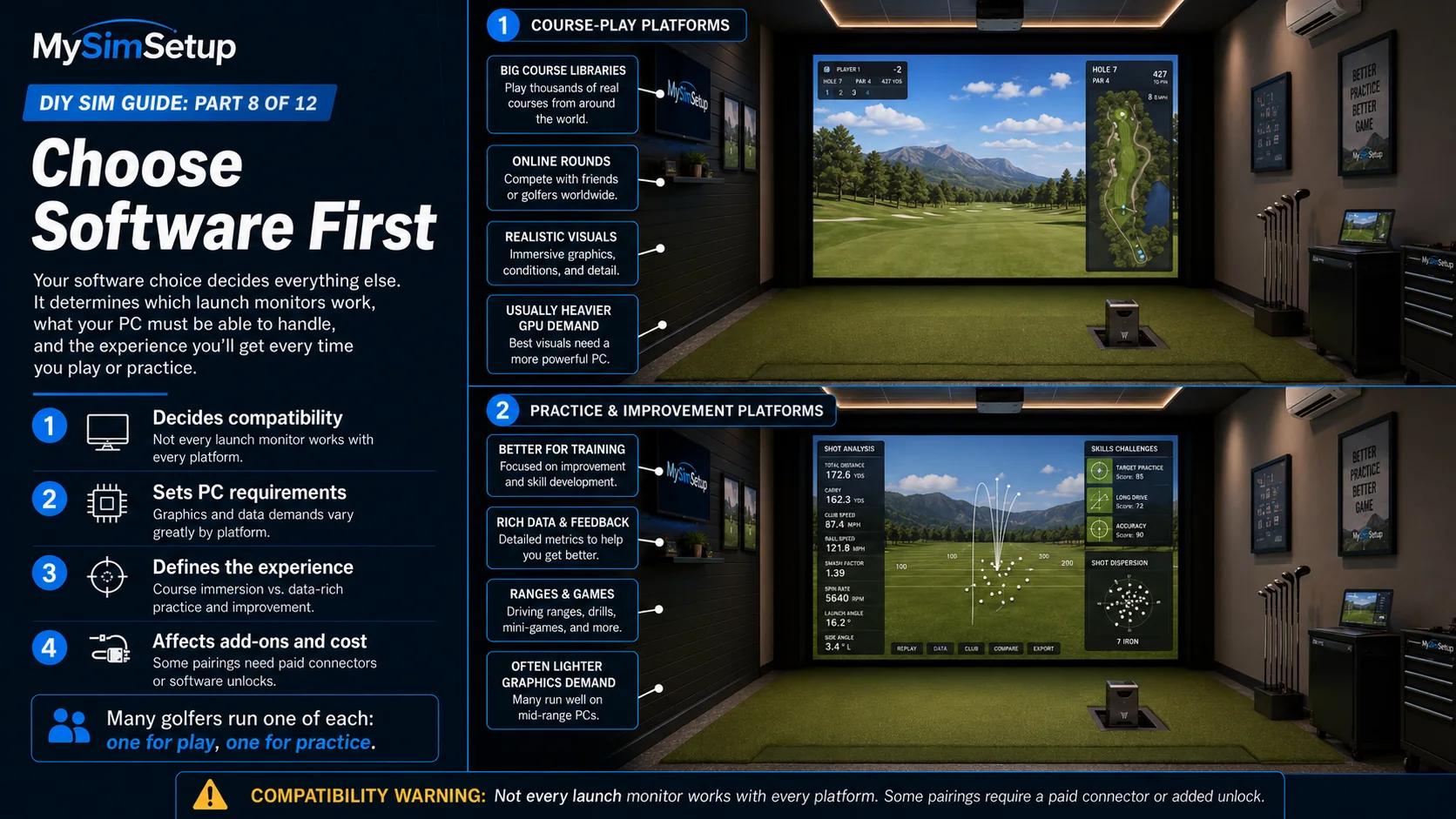
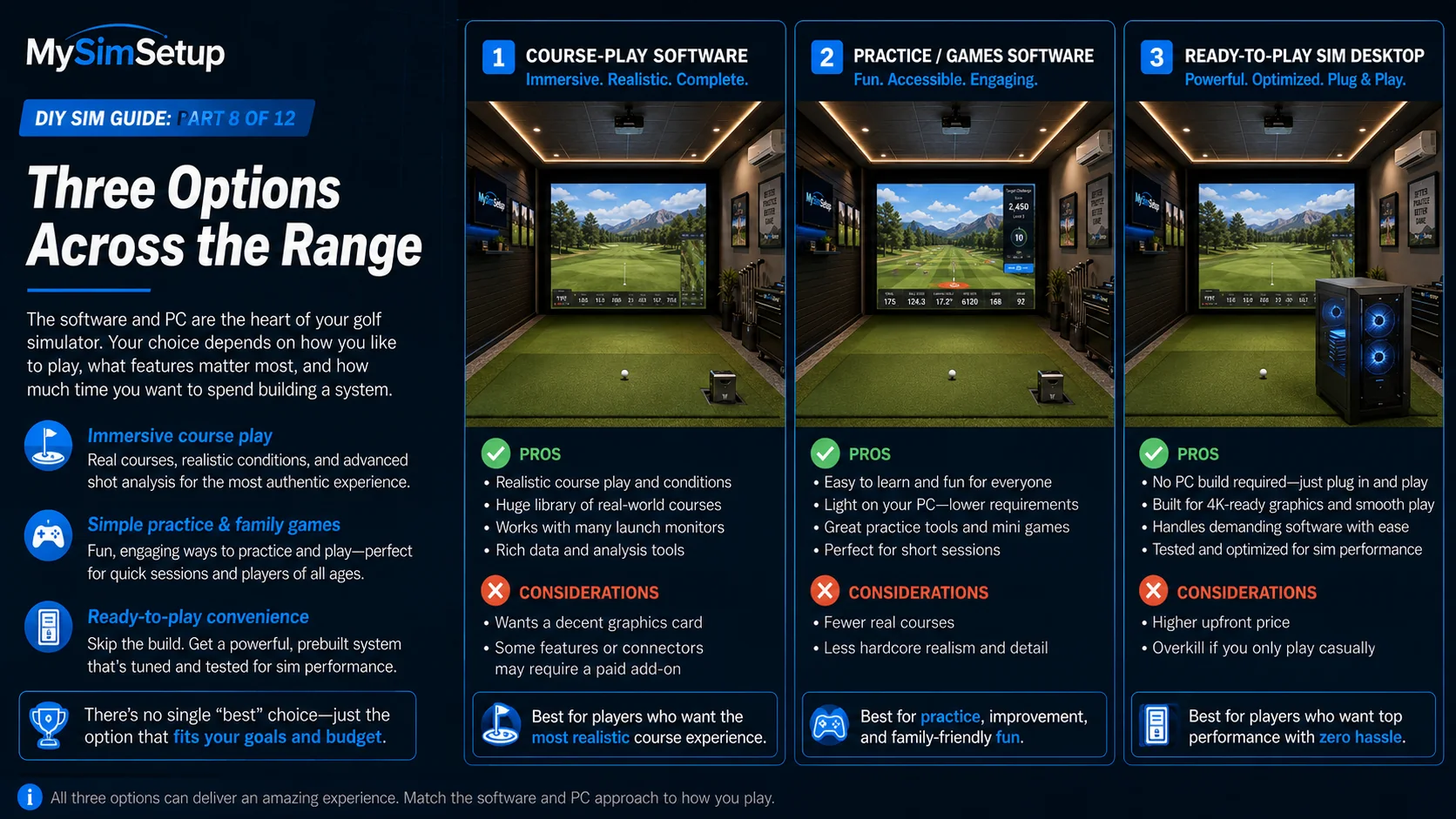
Choose your simulator software first, because it gates both which launch monitors it supports and how much computer you need. Broadly there are two camps. Course-play platforms give you huge libraries of famous courses, online multiplayer, and leagues, the play 18 at Pebble tonight experience. Practice and game-improvement platforms focus on data, driving ranges, and structured drills for getting better. Many players run one of each. Decide what you mostly want to do, then find the platform that does it best.
Course-play platforms
These prioritize immersion and content: big course rosters, realistic graphics, online rounds, and community events. They tend to want a stronger graphics card to look their best, and they may be a one-time purchase or a subscription depending on the platform and course packs.
Practice and improvement platforms
These prioritize data and training: shot dispersion, skills challenges, ranges, and detailed feedback. They are often lighter on the graphics card and heavier on precise data, making them a great pairing with a launch monitor that measures rich club data.
PC requirements by software
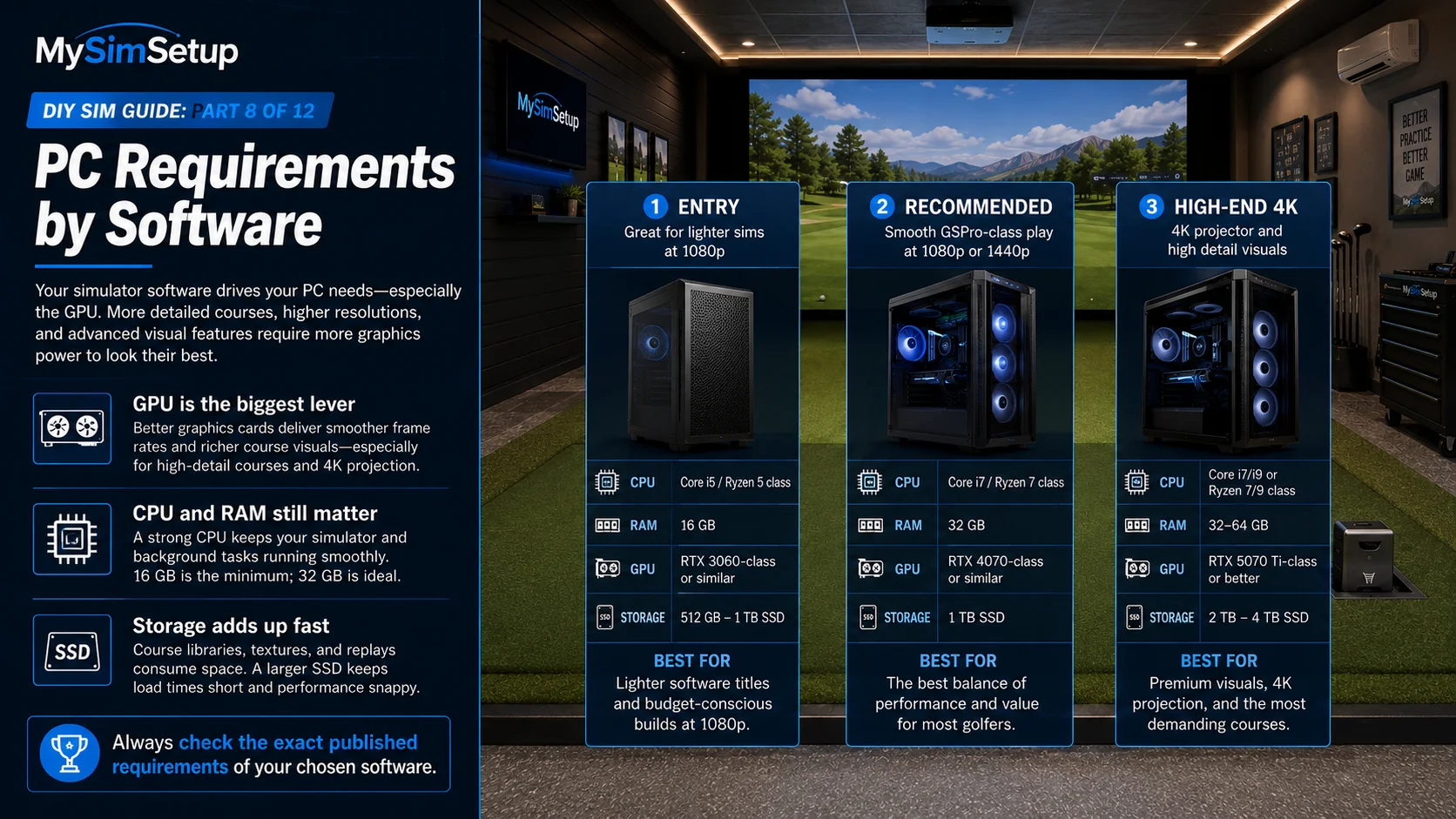
The graphics card (GPU) is the biggest lever for course-play visuals, because it does the heavy lifting of rendering the course. The processor (CPU) and memory (RAM) matter too, and course libraries eat storage, so a roomy SSD helps. The three tiers above are a solid starting point: an entry machine handles lighter sims at 1080p, a recommended build runs GSPro smoothly, and a high-end rig drives a 4K projector with the detail turned up. Always build to your specific software published requirements rather than a generic guess. Some launch monitors also run on a tablet or phone, or ship with a bundled mini-PC, which can simplify this entirely.
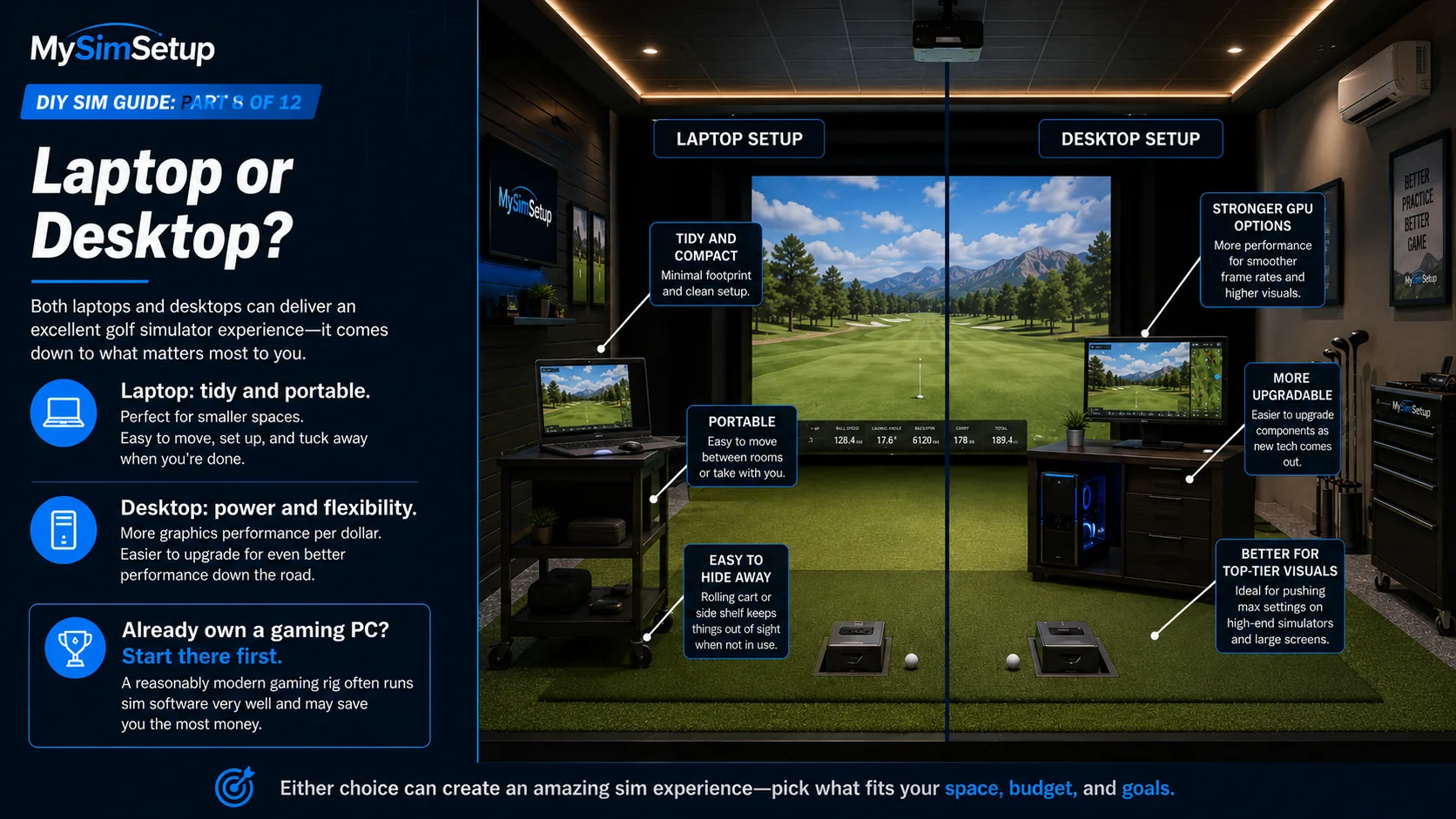
Laptop or desktop
A laptop is tidy, portable, and easy to tuck away, which is great if space or cable-cleanliness is a priority. A desktop gives you far more graphics power per dollar and is upgradeable down the road, which matters if you want top-tier course visuals. Either works. Choose based on whether you value neatness and portability or raw performance and future upgrades.
Can you reuse a gaming PC?
Very often, yes. A reasonably modern gaming rig is frequently more than enough to run sim software beautifully, which makes the computer the single easiest place to save money. Check your machine against the software requirements before assuming you need to buy anything new.
Here are two popular software choices and a ready-to-play machine, if you would rather not build one.
Some links on this page earn this site a commission at no extra cost to you. Learn more.
"The community favorite for realistic course play, with a huge library of community courses and online rounds."
"Fun, beginner-friendly games and practice that run on modest hardware, and great for family play."
"A ready-to-play desktop with an RTX 5070 Ti, so you skip the build and drive GSPro at 4K."
Displays, sound, and connections
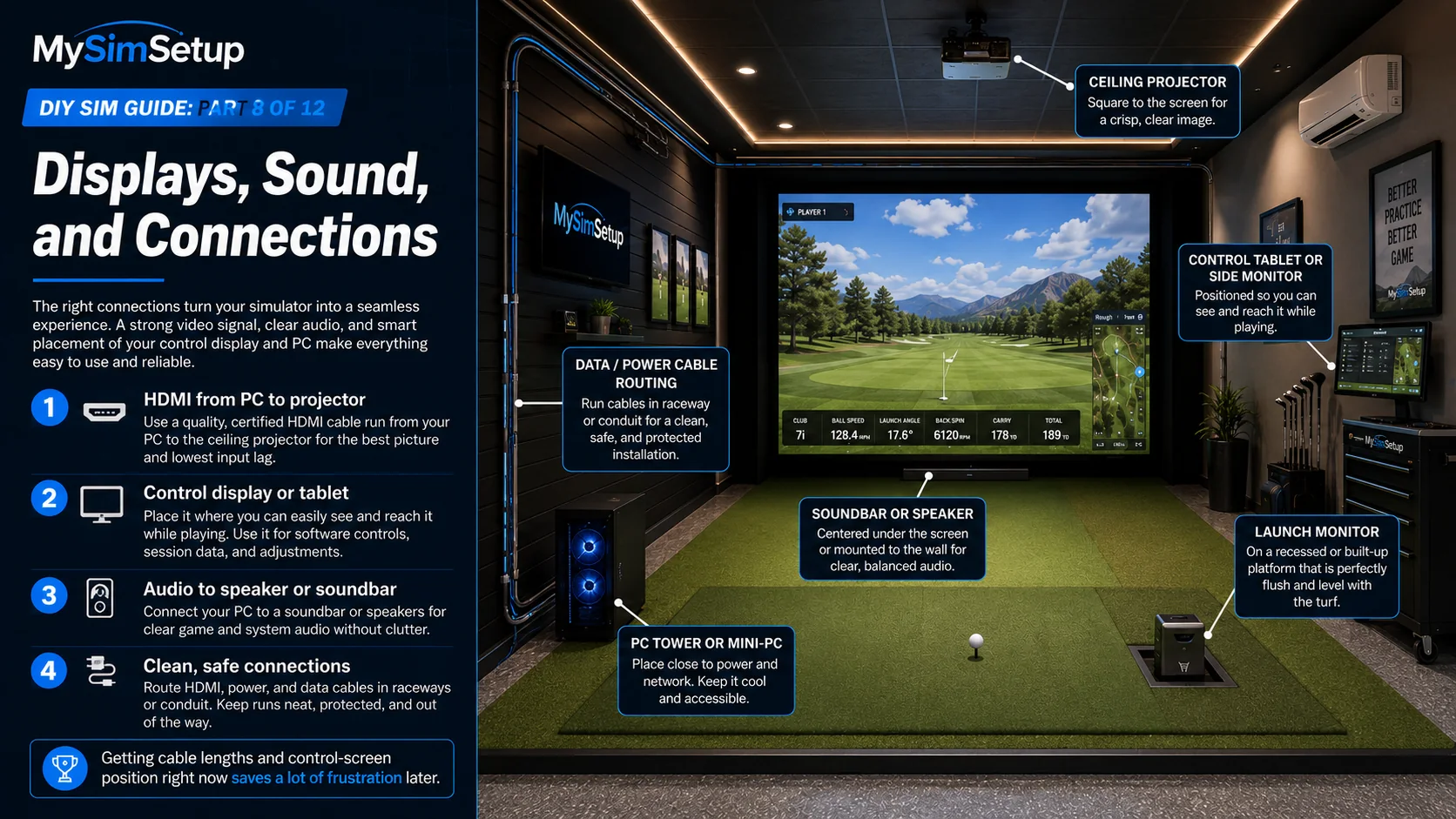
Plan the physical hookups: an HDMI run of the right length from the PC to the projector, a control screen or tablet you can see while you play, and audio out to a speaker or soundbar. Getting cable lengths and a comfortable control-screen position right now saves a lot of fiddling later.
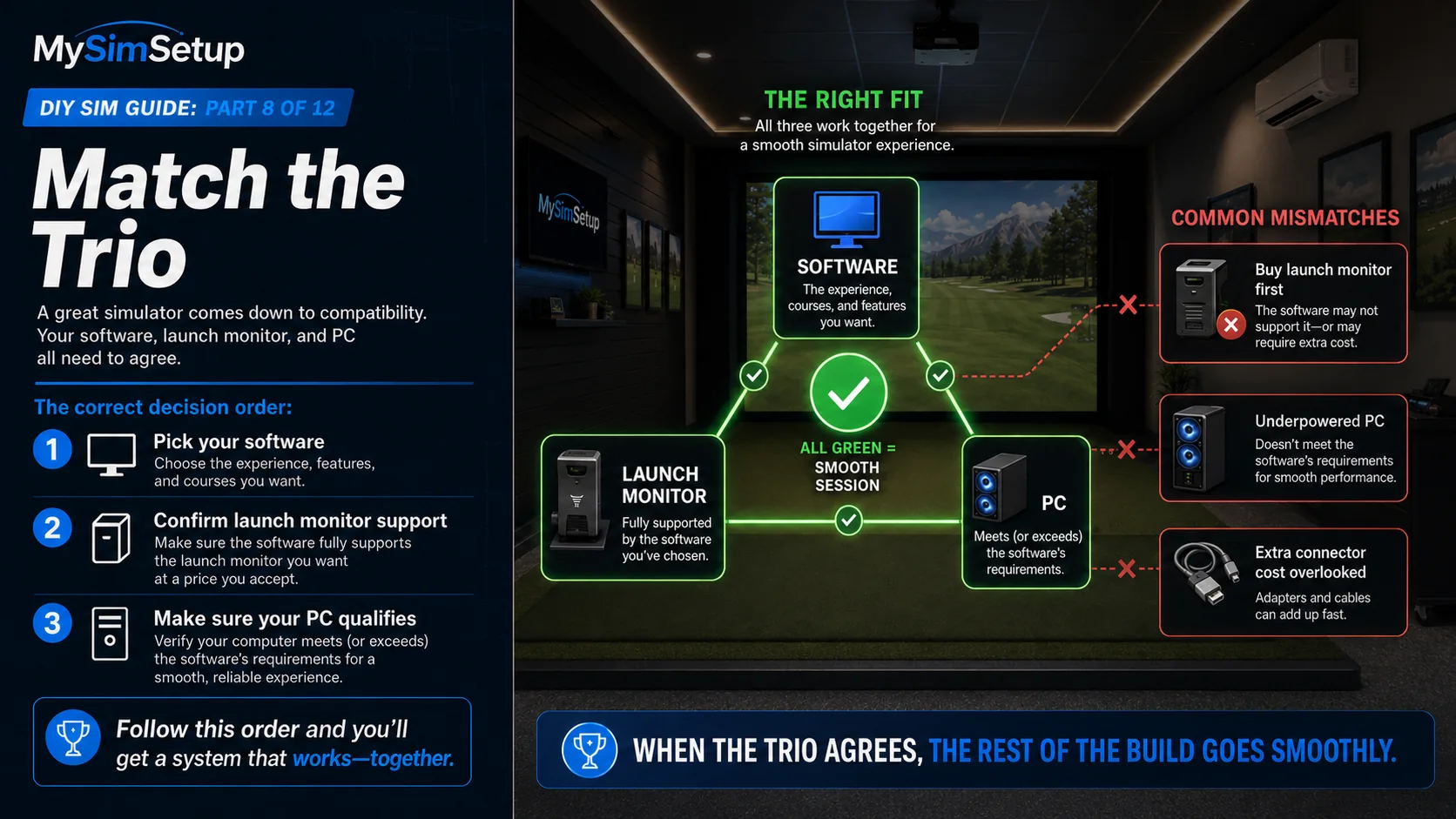
Match the trio
The whole game here is compatibility: launch monitor, software, and PC all have to agree. Pick the software, confirm it supports your launch monitor at a price you accept, and make sure your computer meets its requirements. Line up all three and the rest of the build is smooth sailing.